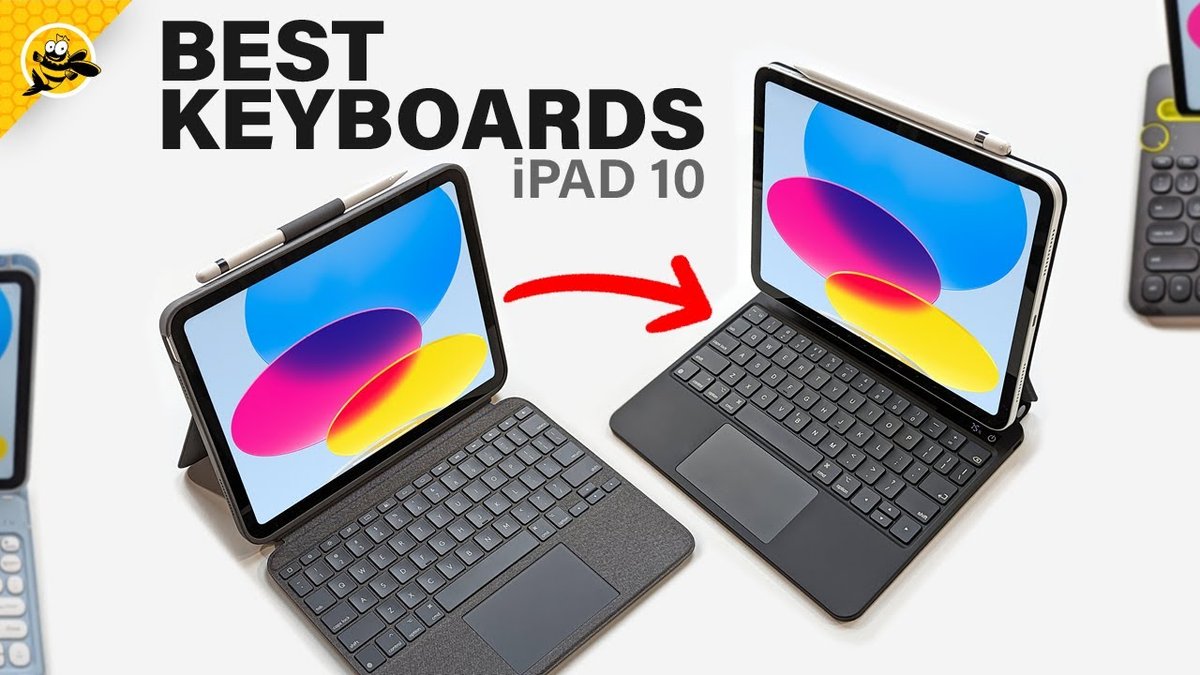
A silent iPad keyboard can feel like a sudden halt to productivity, turning a sleek workhorse into a frustrating slab of glass. Whether you're halfway through an important email, struggling with schoolwork, or simply trying to type a quick note, a non-responsive keyboard on your iPad 10th Gen can be incredibly annoying. The good news? When it comes to Troubleshooting Common iPad 10th Gen Keyboard Issues, most problems are minor and often fixable right from home. You usually won't need an immediate trip to the Apple Store.
This guide will walk you through everything you need to know, from diagnosing the root cause to implementing simple fixes, ensuring you get back to typing smoothly in no time.
At a Glance: Quick Fixes for Your iPad Keyboard
- Check the connection: For Smart/Magic Keyboards, ensure it’s securely attached and the Smart Connector pins are clean.
- Restart your iPad: A classic fix for many software glitches.
- Verify Bluetooth: Make sure Bluetooth is on and your keyboard is properly paired (or re-pair it).
- Charge it up: Low battery is a common culprit for wireless keyboards.
- Update everything: Keep iPadOS and your apps current to avoid software bugs.
- Test in another app: Pinpoint if the issue is app-specific.
- When in doubt, clean: Debris can prevent proper connection or key presses.
The Frustration of a Silent Keyboard
Imagine this: You're in a groove, typing away, and suddenly, nothing. Your iPad isn't registering key presses. The convenience of a physical keyboard, which might have even influenced your decision to choose an iPad 10th Gen (a fantastic device, by the way), vanishes. This isn't just an inconvenience; it can slow down your workflow, impact your studies, or simply make daily tasks more cumbersome.
The good news is that these issues, while frustrating, often stem from easily identifiable causes, and the solutions are usually straightforward.
Unpacking Why Your Keyboard Might Be Acting Up
Before diving into solutions, it helps to understand the potential culprits. Identifying the cause can save you time and point you directly to the right fix.
Software Glitches: The Digital Hiccup
Sometimes, your iPadOS just needs a nudge. Minor software bugs can interfere with keyboard communication. This might happen after an update, or simply because a background process is acting up.
Bluetooth Connectivity Problems: The Invisible Barrier
For wireless Bluetooth keyboards, the connection relies on an invisible signal. If Bluetooth is accidentally turned off, your keyboard isn't paired correctly, or there's interference from other devices (like too many Bluetooth accessories in one space), your keyboard might appear unresponsive.
Low Battery Woes: The Power Drain
This is perhaps the most overlooked cause for wireless keyboards. A drained or improperly charging battery can render your keyboard useless. If your keyboard has an indicator light, it’s usually the first place to check.
Physical Connection Issues: The Loose Link
If you're using an Apple Smart Keyboard Folio or Magic Keyboard, they connect magnetically via the Smart Connector. A loose or improper attachment means your iPad won't "see" the keyboard.
Dirt, Debris, or Damage: The Physical Obstruction
The Smart Connector on both your iPad and its keyboard is susceptible to tiny bits of dust, lint, or grime. Even a speck of dirt on one of the three pins can disrupt the connection. Of course, physical damage—a drop, spill, or bent pins—can also be the culprit.
Tricky Settings: The Hidden Configuration
Your iPad's settings are powerful, and sometimes, a seemingly unrelated setting can interfere with keyboard functionality. Incorrect keyboard language settings, an accidentally disabled keyboard, or specific accessibility settings (like "Full Keyboard Access") can sometimes cause unexpected behavior.
Corrupted Dictionary: The Misunderstood Wordsmith
The iPad has a built-in keyboard dictionary that learns your typing habits and suggests words. Rarely, this dictionary can become corrupted, leading to odd typing issues or unresponsive keys.
App-Specific Quirks: The Isolated Problem
Occasionally, the problem isn't with your keyboard or iPad itself, but with a specific application. An outdated app, a temporary bug within it, or a conflict with its text input field can make your keyboard seem broken when it's perfectly fine everywhere else.
Hardware Damage: The Last Resort
While rare, sometimes the keyboard itself is damaged, or, even less frequently, the Smart Connector or internal components of your iPad are at fault. This is usually diagnosed after all other troubleshooting steps have failed.
Your Step-by-Step Guide to Keyboard Revival
Now that you understand the potential causes, let's get into the practical solutions. Work through these steps systematically, and you’ll likely find a fix.
1. Smart Connector Check-Up (For Smart Keyboard Folio & Magic Keyboard)
If you're using an Apple Smart Keyboard Folio or Magic Keyboard, their connection to your iPad 10th Gen is purely physical via the Smart Connector. This makes troubleshooting relatively straightforward.
- Detach and Reattach: Gently remove your keyboard from your iPad. Make sure there’s no resistance. Then, carefully reattach it, ensuring the three metallic Smart Connector dots on the keyboard align perfectly with the corresponding dots on your iPad. A satisfying magnetic snap usually confirms a good connection.
- Clean the Connectors: This is crucial. Even a tiny piece of lint or a smudge can disrupt the connection. Use a dry, soft, lint-free cloth (a microfiber cloth works best) to gently wipe the three Smart Connector dots on both your iPad and the keyboard. Avoid using any liquids or abrasive materials.
- Restart Your iPad: After cleaning and reattaching, give your iPad a quick restart. Hold down the top button until the power off slider appears, then drag it to turn off. Wait a few seconds, then press the top button again to power it back on. This refreshes the iPad's system and can often resolve minor connection glitches.
2. Bluetooth Troubleshooter (For Wireless Bluetooth Keyboards)
For third-party Bluetooth keyboards, or even Apple's Magic Keyboard when used wirelessly (though the Magic Keyboard is primarily a Smart Connector accessory for the iPad, many third-party options connect via Bluetooth), Bluetooth connectivity is key.
- Toggle Bluetooth On/Off: Go to Settings > Bluetooth. First, ensure Bluetooth is toggled On. If it is, toggle it Off, wait about 10-15 seconds, and then toggle it On again. This can refresh the Bluetooth module and resolve temporary connection issues.
- Re-Pair Your Keyboard: If simply toggling Bluetooth doesn't work, you might need to re-pair the keyboard. In the Bluetooth settings, find your keyboard in the "My Devices" list. Tap the "i" icon next to its name, then select "Forget This Device." Confirm your choice. Now, put your keyboard into pairing mode (usually by pressing a specific button, check your keyboard's manual) and then select it from the "Other Devices" list on your iPad to pair it again.
- Check for Interference: Move closer to your iPad. Walls, large metal objects, and other strong wireless signals (like Wi-Fi routers, microwaves, or even too many other Bluetooth devices) can cause interference. Try using your keyboard in a different location or temporarily turning off other nearby Bluetooth devices.
3. Power Up! (Check Battery Status)
A dead battery is a shockingly common reason for a wireless keyboard to stop working.
- Look for Indicator Lights: Many wireless keyboards have a small LED light that indicates battery status. If it's red, blinking, or off, your battery is likely low or dead.
- Connect to Charger: Plug your wireless keyboard into its charger (USB-C, Lightning, or micro-USB, depending on the model) for at least 30 minutes. Some keyboards won't show signs of life until they have a minimal charge.
- Replace Disposable Batteries: If your keyboard uses disposable batteries (like AA or AAA), try replacing them with fresh ones.
4. The Classic Reboot (Restart Your iPad)
It sounds too simple, but restarting your iPad can resolve a surprising number of software-related glitches, including those affecting peripheral connectivity.
- For iPads without a Home button (like the iPad 10th Gen): Press and hold the Top button and either Volume button until the power off slider appears. Drag the slider, then wait for your iPad to turn off. After it powers down, press and hold the Top button again until you see the Apple logo.
- For iPads with a Home button: Press and hold the Top button until the power off slider appears. Drag the slider to turn off your iPad. Wait, then press and hold the Top button until the Apple logo appears.
Once your iPad restarts, try your keyboard again.
5. Stay Current: Update iPadOS & Apps
Outdated software can lead to compatibility issues and bugs. Ensuring everything is up-to-date is a fundamental troubleshooting step.
- Update iPadOS: Go to Settings > General > Software Update. If an update is available, tap "Download and Install." Make sure your iPad is connected to Wi-Fi and preferably plugged into power during the update process to avoid interruption.
- Update Specific Apps: If the keyboard issue only occurs in one or two apps, check for updates for those specific applications. Open the App Store, tap your profile icon in the top right, and then scroll down to see if updates are available for the problematic apps.
Keeping your system updated helps ensure optimal performance and compatibility, not just for your keyboard, but for all Keyboards for iPad 10th Generation.
6. Tweak Your Accessibility Settings
Certain accessibility features, while designed to help, can sometimes interfere with standard keyboard input if misconfigured.
- Check Keyboards Settings: Go to Settings > Accessibility > Keyboards.
- Turn off "Full Keyboard Access": This feature allows you to control your iPad using a keyboard without touch input. While powerful, it can sometimes override standard typing input or lead to unexpected behavior if enabled accidentally. Toggle this setting to Off if it's currently on.
- Review Customizations: While in the Keyboards settings, also look for any custom keyboard shortcuts or other features you might have enabled that could be causing a conflict.
7. Give Your Dictionary a Fresh Start (Reset Keyboard Dictionary)
If you're experiencing strange auto-corrections, predictive text issues, or general typing oddities that don't seem like a hardware problem, your keyboard dictionary might be corrupted. Resetting it clears all learned words and custom shortcuts, returning it to its factory state.
- Navigate to Reset Options: Go to Settings > General > Transfer or Reset iPad > Reset.
- Choose "Reset Keyboard Dictionary": Select this option. You'll be asked to enter your passcode. Confirm the reset.
This won't erase any personal data, but you'll have to teach your iPad your unique vocabulary again.
8. App Isolation Test
Is the keyboard failing everywhere, or just in one specific app? This test helps narrow down the problem.
- Try a Different App: Open a basic text-editing app like Notes, Pages, or even the Safari search bar. Try typing there.
- If it Works Elsewhere: If your keyboard functions perfectly in other apps, the issue lies with the original application.
- Close and Reopen: Force-close the problematic app (swipe up from the bottom of the screen to reveal the App Switcher, then swipe the app's card up and off the screen), then reopen it.
- Update the App: Check the App Store for updates for that specific app (as mentioned in step 5).
- Reinstall the App: As a last resort, delete the app (press and hold its icon until it wiggles, then tap the 'X' or '–' sign) and reinstall it from the App Store. Remember to back up any app-specific data if possible before deleting.
9. The External Keyboard Test
This step helps you determine if the problem is with your original keyboard or with your iPad itself.
- Connect a Different Keyboard: If you have access to another Bluetooth keyboard or a Smart/Magic Keyboard, try connecting it to your iPad.
- Analyze the Results:
- If the new keyboard works perfectly: This strongly suggests that your original keyboard is the one with the problem. It might require repair or replacement.
- If the new keyboard also fails: The issue is likely with your iPad's settings or, less commonly, its hardware (e.g., a faulty Smart Connector port or Bluetooth module). In this case, proceed to the final troubleshooting step.
10. When All Else Fails: Contact Apple Support
You've tried everything, diligently working through each step, and your keyboard is still unresponsive. At this point, it's time to call in the professionals.
- Hardware Suspicions: Persistent issues after comprehensive software and connection troubleshooting often point to a hardware problem. This could be with the keyboard itself (damaged keys, internal components), the Smart Connector pins on the keyboard or iPad, or the iPad's internal Bluetooth module.
- Contact Apple: Visit the official Apple Support website, use the Apple Support app, or visit your nearest Apple Store or Apple-authorized service provider. They have diagnostic tools that can pinpoint hardware failures. Be prepared to explain all the troubleshooting steps you've already taken, as this will help them diagnose the issue more efficiently.
Beyond the Fix: Preventing Future Keyboard Headaches
An ounce of prevention is worth a pound of cure, especially when it comes to keeping your iPad keyboard running smoothly.
- Keep Connectors Clean: This can't be stressed enough for Smart and Magic Keyboards. Make it a habit to regularly clean the three Smart Connector pins on both your keyboard and iPad. A soft microfiber cloth is your best friend here. Avoid using water or harsh cleaning sprays. For more stubborn grime, lightly dampen the cloth with a tiny amount of isopropyl alcohol, making absolutely sure no liquid drips into the ports. For frequent users, a weekly wipe-down is a good routine.
- Proper Storage Habits: Treat your keyboard with care. Store it flat, avoiding situations where heavy objects might be placed on it, which can cause key damage or bending. Protect it from extreme temperatures – both very hot and very cold environments can degrade battery life and material integrity. When carrying your iPad and keyboard, consider a protective case or sleeve to prevent accidental bumps and scratches.
- Regularly Update iPadOS: As mentioned in the troubleshooting steps, keeping your iPad's software current is vital. Apple frequently releases iPadOS updates that include bug fixes, security enhancements, and compatibility improvements. These updates ensure your iPad and its peripherals, including your keyboard, operate with the latest optimizations. Always check Settings > General > Software Update and install available updates, ensuring your iPad is plugged into power during the process.
Empowering Your Productivity
A non-functional keyboard can be a real productivity killer, but as you've seen, most issues are a direct result of common, fixable problems. By systematically working through these troubleshooting steps—from simple restarts and connection checks to more in-depth software adjustments—you're well-equipped to get your iPad 10th Gen keyboard back in action. Remember, consistent maintenance and awareness of simple best practices can prevent many problems from arising in the first place.
Don't let a keyboard hiccup derail your workflow. With a little patience and this guide, you can confidently address most issues and return to seamless typing on your iPad.